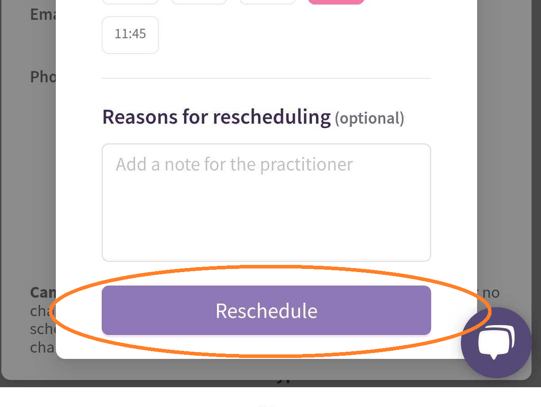
Yes — both practitioners and clients have the ability to reschedule bookings on Heallist. However, how the reschedule is handled depends on the payment method used at the time of booking.
Important note: the rescheduling feature works only with Pending or Confirmed sessions. Here’s everything you need to know about how it works.
Rescheduling Rules by Payment Type
PayPal Bookings
-
If a client reschedules (within 24 days of their original payment):
→ The practitioner will receive a notification to confirm the new date and time.
→ No refund is issued and the client does not need to pay again. -
If a practitioner initiates the reschedule (within 24 days of the current date):
→ The original payment is automatically refunded.
→ The client will have to confirm the new appointment and a new payment is required.
Stripe Bookings
-
If payment has not yet been captured (more than 24 hours before the session):
→ Practitioner reschedules: The client is notified and can confirm the new time without re-entering card details.
→ Client reschedules: They can adjust their appointment without re-entering card details. -
If payment has already been captured (within 24 hours before the session):
→ Practitioner reschedules: The payment is refunded, and the client will need to confirm the new appointment by re-entering their card information.
→ Client cannot reschedule within this window. They would need to contact the practitioner for further assistance.
How the Reschedule Feature Works for Practitioners
1. Reschedule a Booked Session:
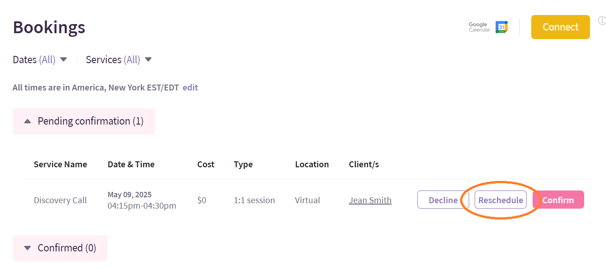
- To start, visit your Bookings page and find the session you want to reschedule. Under the Pending session tab, click the Reschedule button.
2. Propose a New Time from Your Calendar:
- You can easily propose a new session time by selecting an available slot from your calendar within Heallist.
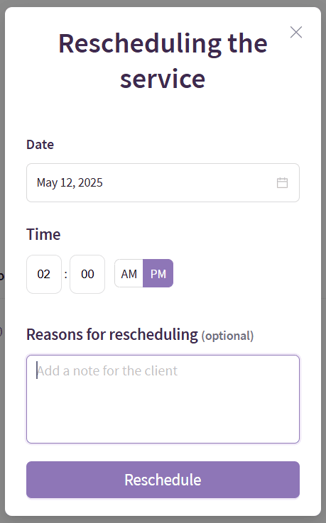
- You’re allowed to pick any date and time, even if it falls outside your usual availability hours, as long as there are no conflicting bookings. We recommend using our Messaging feature to contact the client before rescheduling, so you can agree on the new date and time and reduce rescheduling requests.
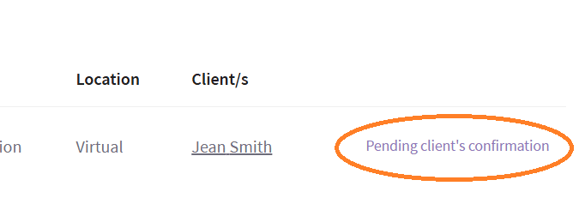
- Once rescheduled, the booking will appear as pending on your end for the client to confirm the new booking schedule.
3. Managing Calendar Conflicts:
- While Heallist allows flexibility in selecting new times, it will not allow you to propose times that conflict with other booked sessions on the Heallist platform.
- However, times marked as busy in your Google Calendar can still be selected if the client is available for that session.
4. Add a Note for Your Client:
- You can include a note explaining the reason for the reschedule, which will be visible to your client when they receive the reschedule request.
5. Notifications & Client Confirmation:
- Once you propose a new time, both you and your client will receive email notifications.
- The client must confirm the reschedule request you sent and the newly proposed time before it becomes final.
These changes give practitioners more control and flexibility, while ensuring clear communication and agreement with clients.
How the Reschedule Feature Works for Clients:
Follow these steps to reschedule your session:
-
Click on the menu in the top right corner of the page and select Bookings from the dropdown menu.
-
Locate the appointment you wish to reschedule. On the right side of the session listing, tap the View Details button.
-
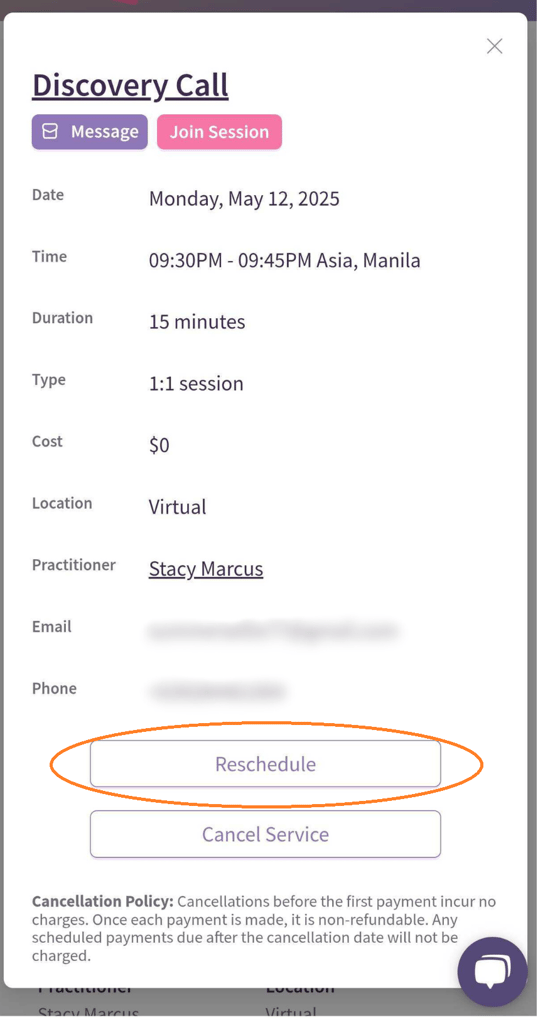
Under the session details, select Reschedule.
-
Choose a new available date, time, and reason from your practitioner’s open calendar. Tap on Reschedule once you're done.